Learn how to unlock studio-quality video production using completely free AI tools.
The digital landscape has fundamentally shifted. Gone are the days when high-end cinematic video production required thousands of dollars in camera gear, expensive editing suites, and endless hours of rendering time. Today, the democratization of artificial intelligence has made it possible for anyone with a computer and an internet connection to create AI videos that look like they were produced by a Hollywood studio.
Whether you are a content creator looking to dominate TikTok and YouTube Shorts, a marketer trying to scale ad production, or an entrepreneur building a brand from scratch, generative AI is your ultimate leverage. The best part? You do not need a massive budget to get started. You can create AI videos for free using cutting-edge tools that offer exceptional quality without costing a dime.
This comprehensive, step-by-step guide will walk you through the exact blueprint professionals use to conceptualize, generate, and edit AI-powered videos. If you want to build advanced AI and digital marketing skills, explore the Digital Marketing with AI Course. Welcome to the future of content creation.
To understand how to leverage these tools effectively, it is essential to realize just how far the technology has come. A few years ago, AI-generated video was highly experimental—often characterized by distorted faces, chaotic physics, and low resolutions.
As we progress through 2026, the landscape is entirely different. We now have access to hyper-realistic physics engines, hyper-consistent character modeling, and fluid spatial awareness. AI engines can now understand cinematic lighting, complex camera movements (like cranes, pans, and dollies), and subtle human emotions. The gap between text prompt and professional video has virtually vanished. Recent advancements in generative AI research from OpenAI and other leading AI organizations continue to accelerate these capabilities.
Before diving into the tools and workflows, let’s look at the concrete benefits of shifting your creative workflow toward AI automation. Professionals enrolled in a Master in Digital Marketing program are increasingly incorporating AI-powered content creation into their marketing strategies.
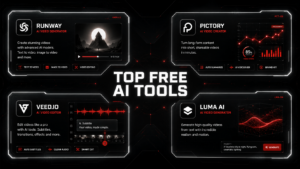
The leading free AI video generation suites changing the digital landscape.
To create AI videos for free that rival professional productions, you need to know which platforms offer the most robust free tiers. Many tools provide free daily or monthly credits that are more than enough to create high-quality, short-form content.
Google’s latest iteration of its generative video model is a powerhouse for consistent, photorealistic, and highly detailed clips. It excels at understanding complex prompts and executing cinematic camera directions accurately.
Kling has established itself as one of the premier platforms for generating lifelike human movements and highly stylistic cinematic sequences.
CapCut isn’t just a mobile video editor anymore; it has evolved into a full-scale creative studio. Its integrated AI tools allow you to generate scripts, turn text into video, and apply AI voiceovers completely free of charge.
Runway remains an industry standard for creative control, allowing users to generate video from text, images, or even existing video clips.
Every great video starts with a stellar concept. Even the most visually stunning AI graphics will fail to engage an audience if the underlying story or message is weak. To create AI videos that keep viewers hooked, you must master the art of the AI-assisted script. Learning AI-powered content creation through a Digital Marketing with AI Course can help refine this process.
On modern social platforms, you have less than three seconds to capture a viewer’s attention before they swipe away. Your script needs a powerful hook. Instead of starting with “Hi, welcome to my channel,” start with a provocative question, a shocking statistic, or a highly compelling visual statement. Understanding audience engagement principles from YouTube’s creator resources can further improve retention.
You can use free large language models like ChatGPT, Google Gemini, or Claude to outline and write your script. To get the best results, use a structured prompt like this:
“Act as a professional viral content creator. Write a 60-second script for a YouTube Short about the future of space travel. Include an aggressive hook in the first 3 seconds, a problem/solution structure in the body, and a clear call-to-action at the end. Format the output with clear visual descriptions for every line of narration.”
By instructing the AI to provide visual descriptions, you effectively create a built-in storyboard. These descriptions will serve as the exact text prompts you input into your video generator. For additional AI and digital marketing insights, explore the ASMAT Blog.
Once your script and visual notes are ready, it is time to move into the generation phase. Writing prompts for video is fundamentally different than writing prompts for static images. You aren’t just describing a still frame; you are describing time, motion, lighting, and camera behavior. The Google Prompting Guide provides useful prompt engineering best practices.
To consistently create AI videos for free that look truly professional, break your text prompts down into four core pillars. Many students develop these skills through advanced programs such as the Master in Digital Marketing course:
Clearly define who or what is the focus of the scene. Be specific about clothing, textures, and appearance.
Describe the background, atmosphere, and time of day. This sets the tone and depth of your clip.
Specify how the scene should be lit. Use industry terms to bypass generic AI-looking outputs.
This is the secret sauce. Tell the AI exactly how the camera should move through the 3D space to give it a high-production-value film look. Professionals who want to enhance advanced content production skills often pursue an Advanced Digital Marketing program.
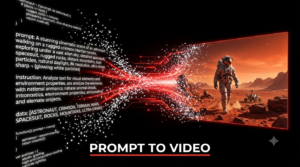
Master the formula: Subject + Environment + Lighting + Camera Movement = Professional AI Video.
With your professionally engineered prompts in hand, you are ready to start rendering your raw video footage. To make the most of your free resources, a tactical approach ensures you do not waste precious generation credits.
While typing text directly into an AI generator (Text-to-Video) is incredibly powerful, professional creators often use a hybrid method: Image-to-Video (I2V).
This two-step process gives you vastly superior control over character faces, background details, and structural consistency before any movement is introduced.
Most free platforms feature a “motion slider” or “motion intensity” setting. When you want to create AI videos that look highly cinematic, it is tempting to crank this setting to the maximum. However, higher motion often introduces visual warping and physical glitches. For clean, professional results, keep your motion intensity set to low or medium (around 3 to 5 out of 10). Subtle camera drifts and controlled character actions look far more realistic than chaotic, fast-paced transformations.
A professional video is only as good as its audio design. In fact, studies show that audiences will tolerate average visual quality if the audio is crisp, but they will click away instantly if the sound is poor. Fortunately, you can build a stunning audio track entirely for free.
To generate a voice for your narration, turn to platforms like ElevenLabs or CapCut’s built-in text-to-speech engine. Look for voice profiles that sound conversational, grounded, and human—avoiding overly robotic or enthusiastic inflections that immediately give away the AI nature of the video.
Pro Tip: When formatting your script for an AI voice generator, use punctuation strategically. Add commas for short breath pauses and ellipses (…) for dramatic pauses to make the cadence sound organic.
To layer depth beneath your voiceover, utilize high-quality, copyright-free audio libraries. Platforms like the YouTube Audio Library, Pixabay Music, and Freesound.org offer massive repositories of cinematic tracks, ambient backgrounds (like wind howling or city traffic), and impactful sound design elements (like swooshes, risers, and deep bass drops) completely free of charge.
Once you have gathered your generated video clips, voiceovers, and sound files, it is time to bring everything together into a cohesive masterpiece. You can complete this entire post-production process within free editing software like CapCut Desktop or the free version of DaVinci Resolve.
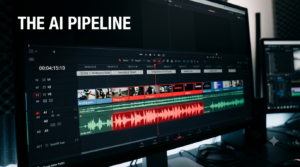
The professional post-production pipeline: Synchronizing AI voiceovers, visual cuts, and dynamic text.w
[ AI Video Generation Pipeline ]
├── 1. Script & Visual Blueprint (LLMs)
├── 2. Visual Style & Concept (Image Generation / I2V)
├── 3. Motion Rendering (Kling, Google Veo, Runway)
└── 4. Final Assembly (Editing, Audio Design, & Captions)
If you are publishing your content to platforms like TikTok, Instagram Reels, or YouTube Shorts, on-screen captions are mandatory, as a vast majority of mobile users watch videos on mute.
To demonstrate how practical it is to create AI videos for free, let’s look at a real-world workflow used by a faceless historical storytelling channel that scales its content entirely through free AI platforms.
The resulting video is visually stunning, emotionally engaging, and entirely free to produce—ready to be uploaded and monetized across social media platforms.
Yes. Most modern AI video platforms allow you to monetize the content you create on their platforms, even on free tiers. However, always review the specific Terms of Service of the tool you are using, as some platforms require a premium subscription for commercial usage licenses if you are using their videos directly in paid advertisements.
If an AI video generator outputs a clip with distorted human features, your best approach is to use the Image-to-Video pipeline. Generate a flawless face using a dedicated AI image generator first, then bring it into the video tool with a very low motion setting to keep the facial structure locked down.
No. Major platforms like Google, YouTube, and TikTok prioritize content that provides high viewer retention, engagement, and value. As long as your videos are well-structured, original in concept, and highly engaging to your audience, they have the exact same viral potential as traditionally filmed content.
Most free AI tools generate video clips in bursts of 4 to 5 seconds per render. To create longer videos, professionals simply string multiple distinct clips together in an editor, or utilize “extend” features inside the software to add additional seconds to an existing shot.
As we move forward, the barriers to entry for digital media will continue to plummet. The creators, marketers, and businesses that thrive are those who embrace these automation tools to scale their creative output without sacrificing quality. By mastering prompt engineering, understanding cinematic structure, and leveraging the generous free tools available today, you can consistently output high-end, studio-grade video assets completely on your own terms.